







Gimkit Host: Step-by-Step Guide to Hosting Live Games & Assignments
If you are an educator, corporate trainer, or group leader looking to engage your audience, learning how to serve as a Gimkit host is one of the most effective ways to make learning fun. Created by students for students, Gimkit combines traditional quiz formats with video game mechanics—allowing players to earn virtual currency, buy power-ups, and compete in interactive 2D game worlds.
In this comprehensive guide, we will walk you through how to host a live Gimkit session, assign self-paced homework games, configure host settings, and choose the best game modes for your group.
What Does a Gimkit Host Do?
As a Gimkit host, you control the game environment from your educator dashboard. Your primary responsibilities include selecting the subject material (called a “Kit”), picking a game mode, generating entry join codes or QR links, and monitoring real-time player data
Gimkit offers two primary ways to host content:
-
- Live Games: Real-time competitive sessions where all players join simultaneously using a game code or join link.
- Assignments (Async): Asynchronous, self-paced review games that students complete on their own schedule before a set deadline.
How to Host a Live Gimkit Game (Step-by-Step)
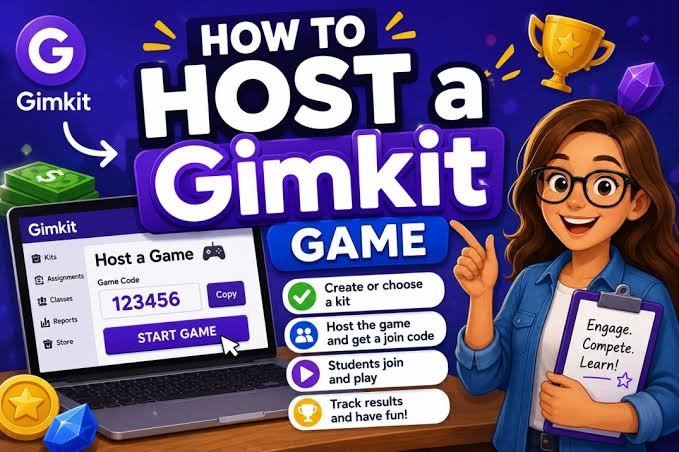
Setting up a live interactive session takes less than two minutes. Follow these steps to start hosting:
-
- Log In to Your Account: Navigate to your dashboard on Gimkit.com.
- Select or Create a Kit: Choose an existing question deck from your library, search for community-made Kits, or build a new one from scratch.
- Click “Play Live”: Hit the live hosting button next to your selected Kit.
- Select a Game Mode: Choose between classic modes (e.g., Trust No One, Humans vs. Zombies) or immersive 2D modes (e.g., Don’t Look Down, Snowbrawl, One Way Out).
- Configure Host Options: Adjust game length (time limit vs. money goal), starting cash, handicap settings, and power-up availability.
- Share the Code: Click “Continue” to launch the lobby. Display the unique 6-digit game code or QR code on your projector for players to join at
gimkit.com/join. - Start the Game: Once all participants appear in your host lobby, click “Start Game”.
Gimkit Host Settings & Customization Options
To keep gameplay fair and aligned with your classroom goals, Gimkit provides granular control over session settings:
Setting Option Function Recommended For
Time Limit Goal Ends the game after a set duration (e.g., 10 mins) or money threshold. Time-boxed review warm-ups
Starting Cash Gives players initial virtual currency to purchase immediate shop upgrades. Shorter, fast-paced game sessions
Clean Language Filter Automatically replaces inappropriate nickname entries in the lobby. Middle school & high school groups
Late Join Allows students who arrive late to enter the active game without resetting. Large, dynamic classrooms
Handicap System Reduces penalty costs for struggling players to keep them engaged. Mixed-ability learning groups
Popular Game Modes Every Host Should Try
One reason Gimkit stands out from platforms like Kahoot or Quizizz is its diverse library of game modes. Depending on your goals, you can switch up the gameplay style:
1. 2D Interactive Worlds (Co-op & Strategy)
- Don’t Look Down: A 2D platforming game where players answer questions to earn energy and climb higher up a summit.
- One Way Out: A cooperative escape mode where players work together, buying tools and keys with correct answers to escape.
- Snowbrawl: A action-packed team battle mode where answering questions grants snowballs to throw at opponents.
2. Classic & Social Deduction Modes
-
- Trust No One: Inspired by Among Us, players complete quiz tasks while trying to discover who the secret impostors are.
- Humans vs. Zombies: A team-based survival mode where correct answers help humans fortify bases or allow zombies to infect opponents.
Frequently Asked Questions (FAQs)
Can I host a Gimkit game for free?
Yes. Gimkit Basic allows educators to host live games using a rotating selection of featured game modes and standard classroom features for free. Upgrading to Gimkit Pro unlocks all game modes permanently, along with asynchronous Assignments.
How many players can join a hosted Gimkit game?
Live Gimkit games support up to 500 live players per session, making it ideal for individual classrooms, grade-wide assemblies, or large training groups.
Can players join without an account?
Yes. Players do not need an account to join a live game. They simply visit gimkit.com/join on their smartphone, tablet, or laptop and enter the host’s 6-digit game code.
Conclusion
Becoming an effective Gimkit host allows you to turn routine quizzes into highly engaging, gamified learning experiences. By experimenting with various 2D modes, configuring custom host parameters, and utilizing post-game reporting analytics, you can sustain student attention while gathering valuable assessment data. Select your favorite Kit, launch a game code, and bring interactive learning into your next session!




One comment on “Gimkit Host Guide: How to Set Up Live Games & Modes”